How to install the game on your phone
From the icon the game opens right away, full screen and without browser bars. On an iPhone game notifications arrive only this way — in the game opened from the icon.
iPhone — Safari
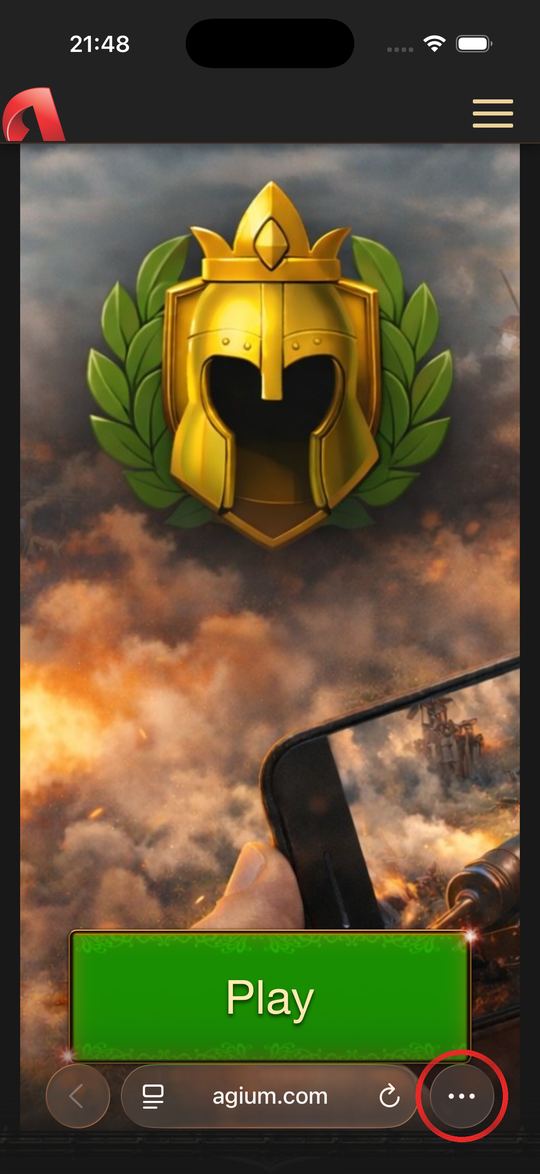
Open agium.com in Safari and tap “•••” next to the address bar.
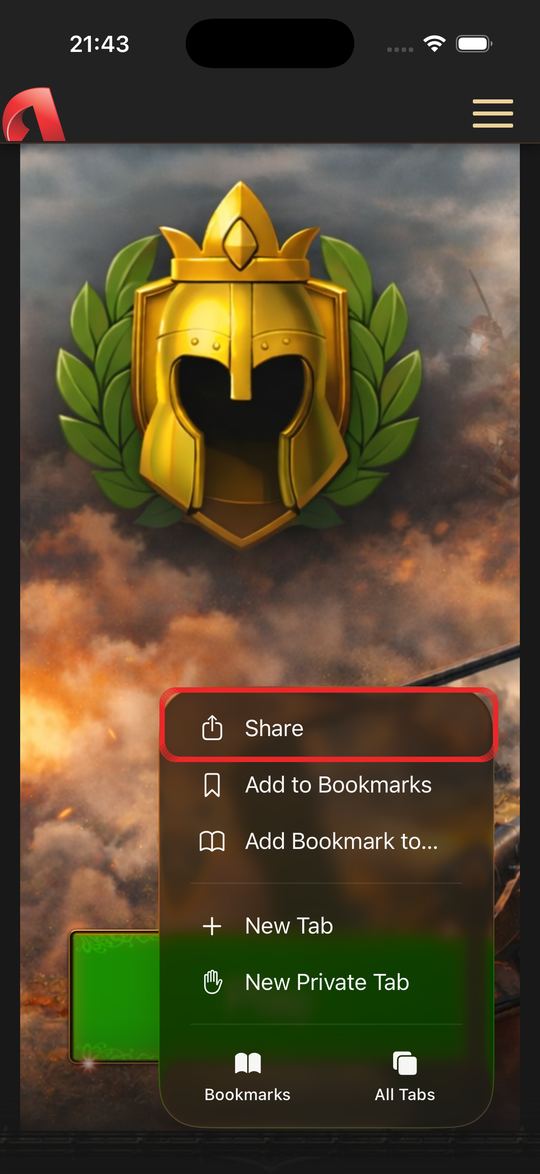
Choose “Share”.
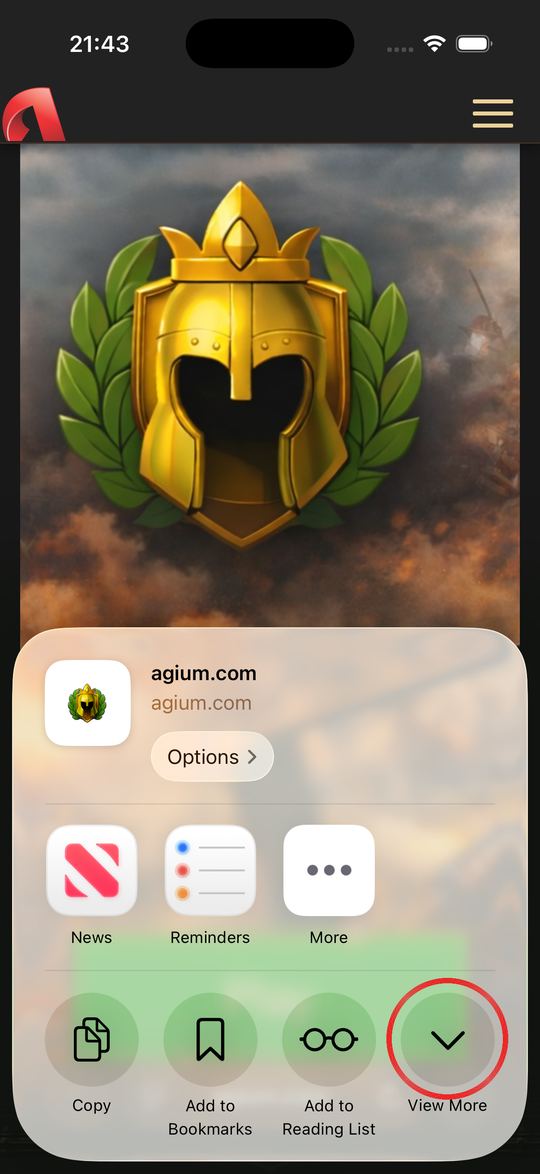
Tap “View More”.
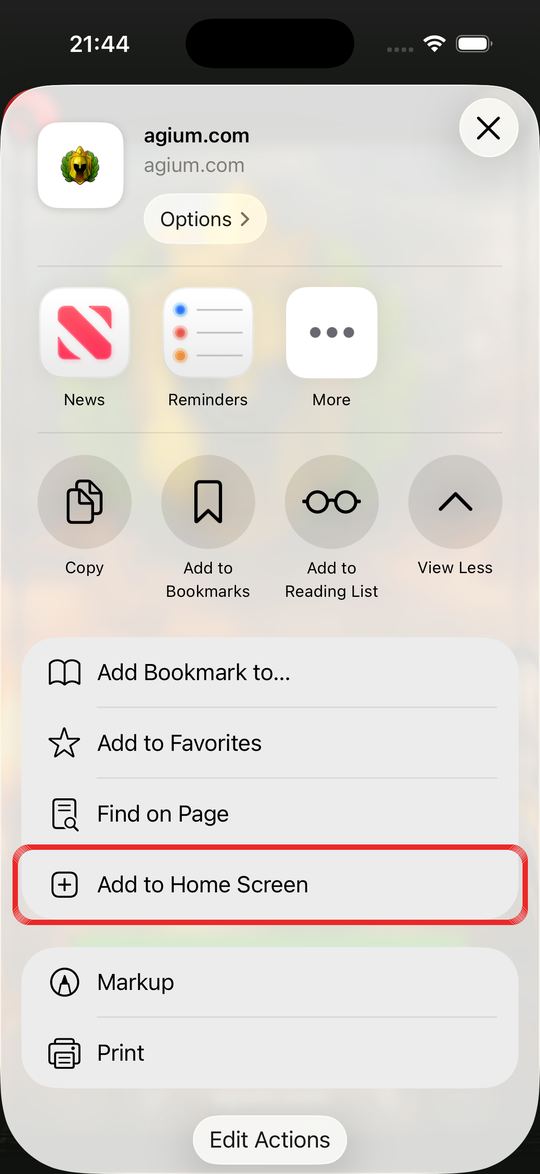
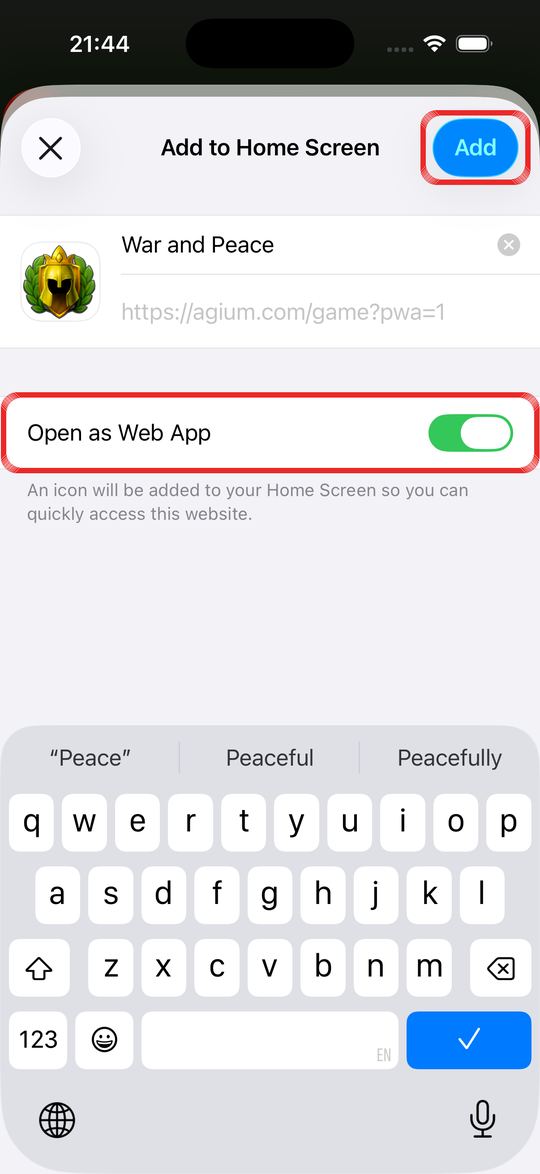
Choose “Add to Home Screen”.
Keep “Open as Web App” on and tap “Add”.
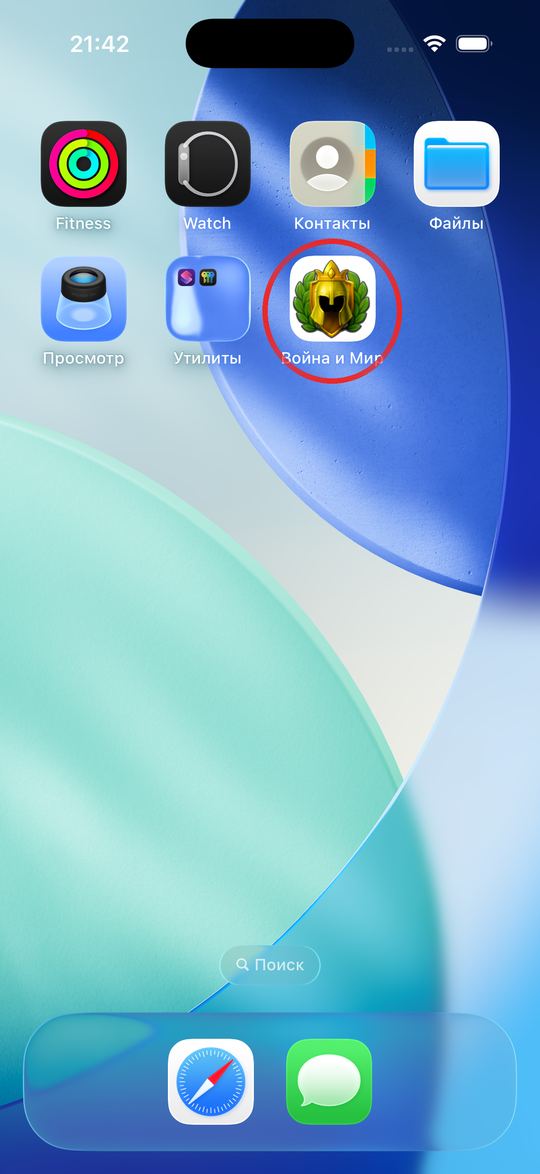
The game icon appears on your Home Screen. Open the game from it.
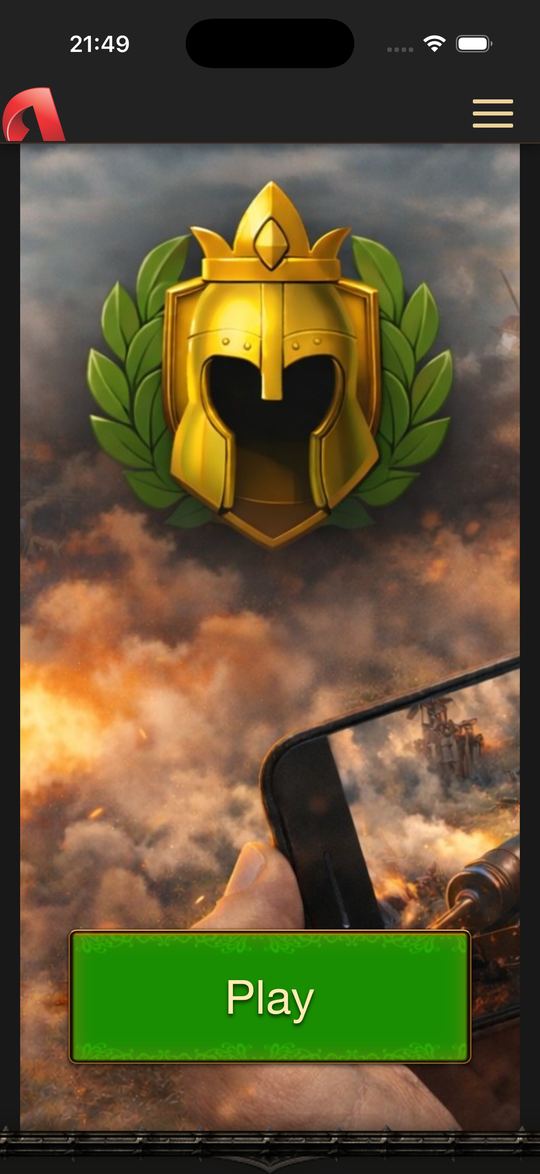
The game opens as an app, without Safari bars. Allow notifications when the game asks.
iPhone — Chrome
- Tap “Share” in the address bar (or “•••” → “Share”).
- If you don’t see it, tap “View More” and choose “Add to Home Screen”.
- Tap “Add” and open the game from the icon.
Android — Chrome
Open agium.com in Google Chrome and tap “Play”.
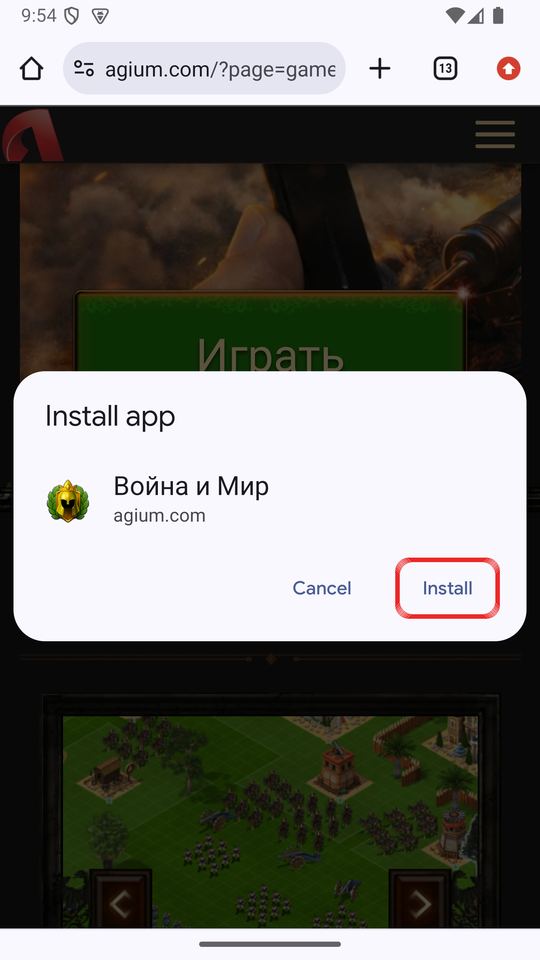
Chrome offers to install the game — tap “Install”.
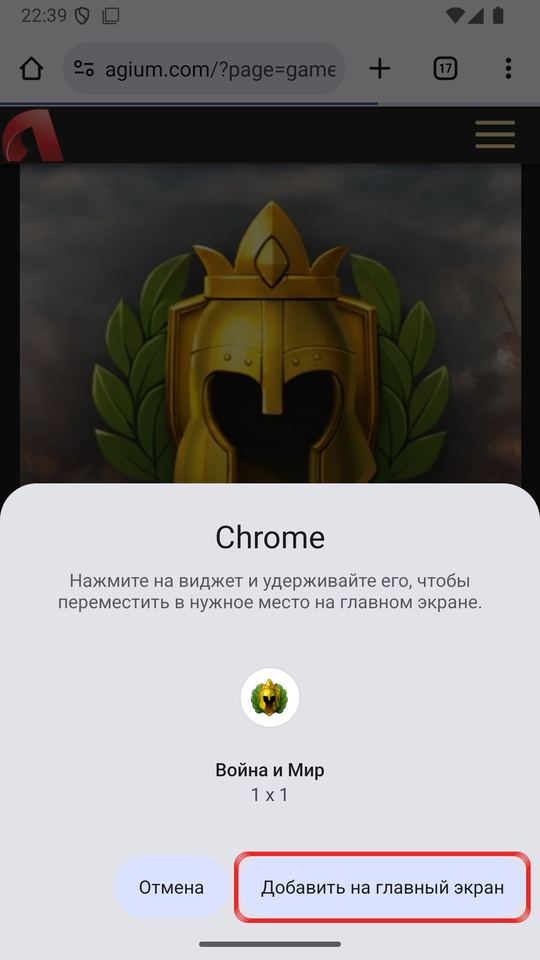
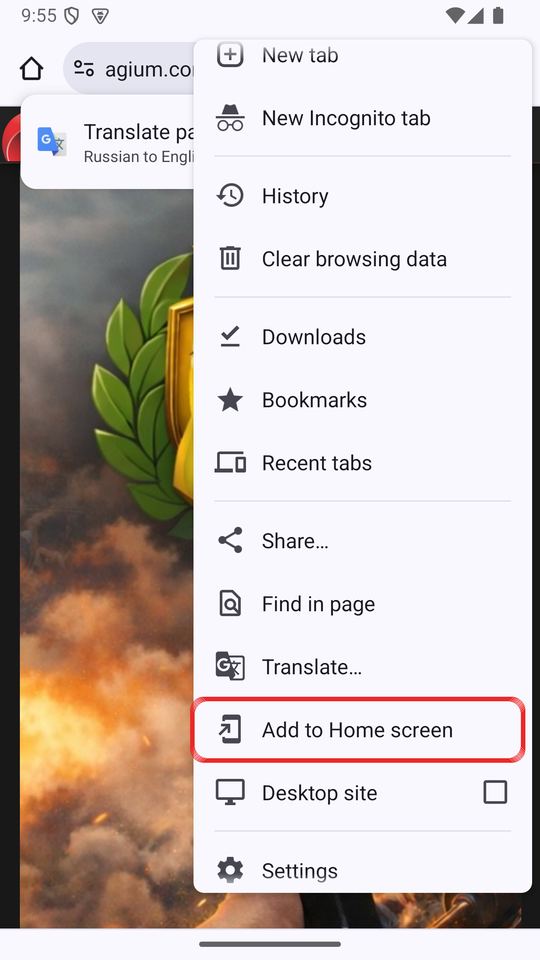
If the phone asks, tap “Add to home screen”.
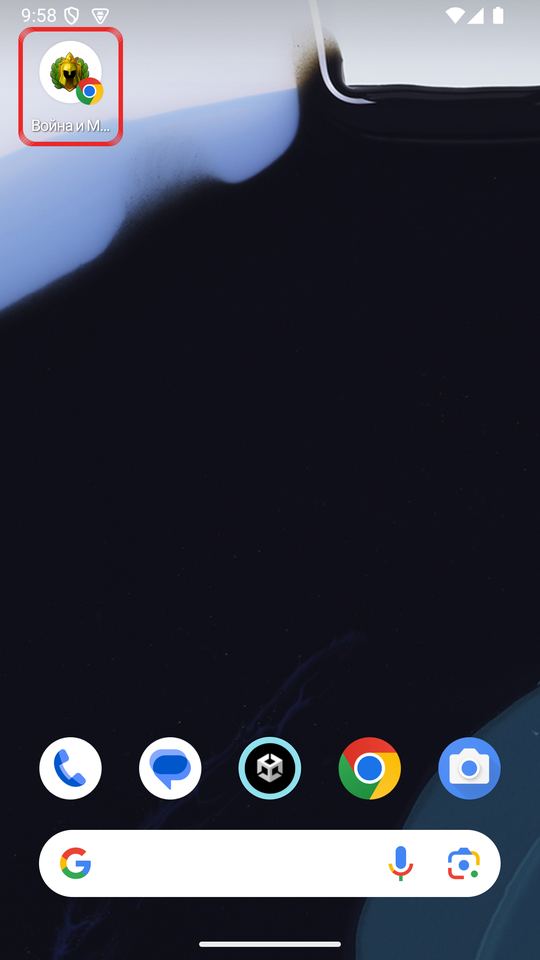
The game icon appears on your phone’s home screen.
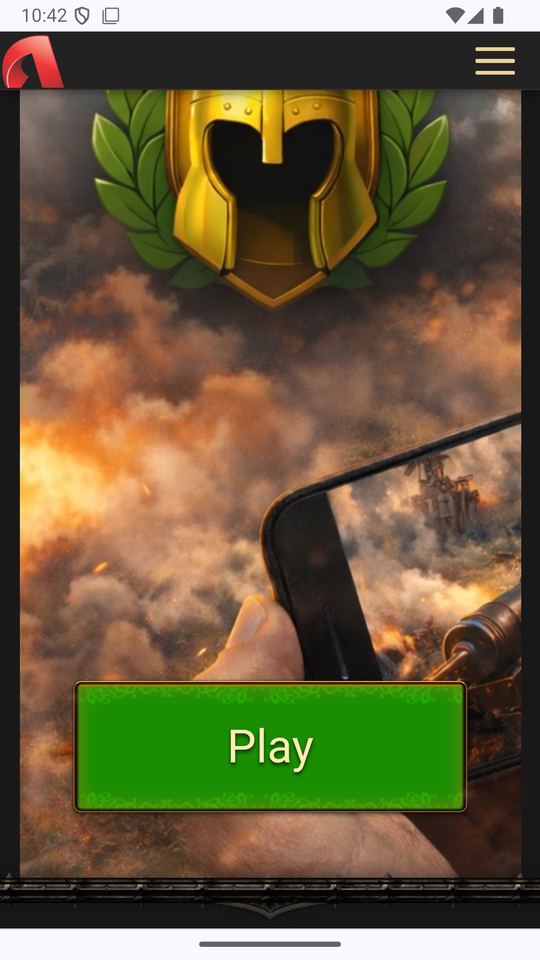
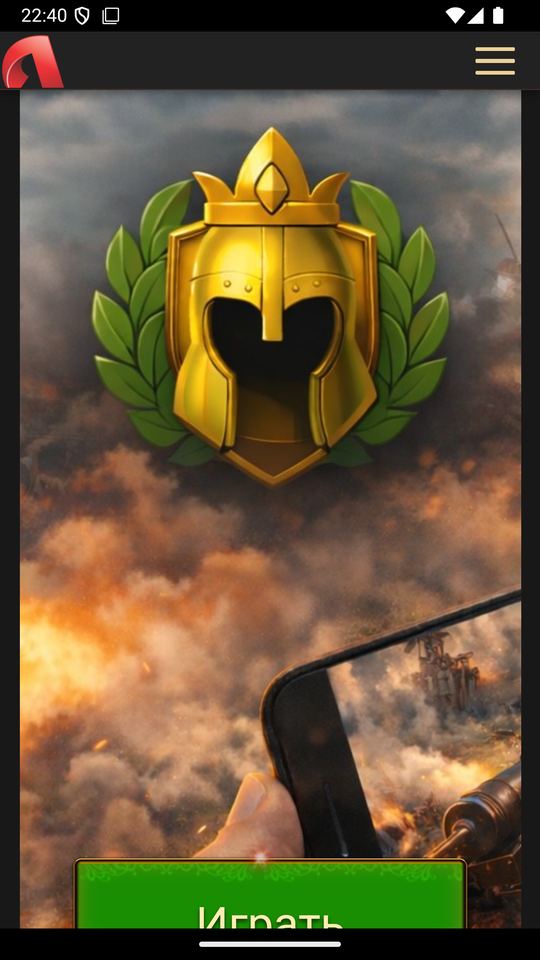
The game opens from the icon as an app, without browser bars.
If Chrome didn’t offer to install — menu “⋮” → “Install app” or “Add to Home screen”.
The icon appears only on the phone where you added it. Notifications on an iPhone need iOS 16.4 or later.